Privacy maniacs will know this well: on the iPhone there is a function that allows you to hide downloaded apps to prevent them from being accessible to third parties, which can be useful in reducing the risk that a curious on duty can easily access their sensitive data. Just think of all that information we keep in health monitoring apps, banking apps or, more simply, chat and various social networks. By moving them to a protected section of iOS, you can sleep much more peacefully. Taking advantage of the biometric authentication function with which all iPhones marketed in recent years are equipped, i.e. the recognition of unique physical traits such as the face (Face ID) or fingerprint (Touch ID).
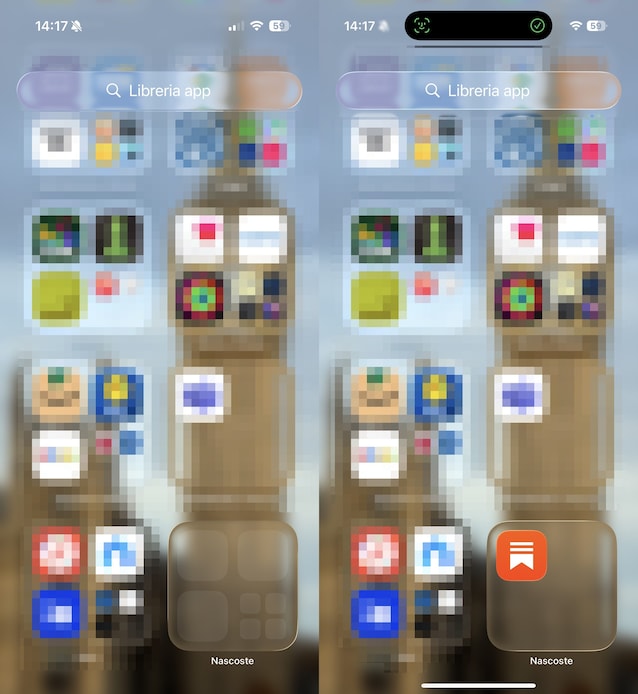
Once this option is activated by holding down the icon, the app of interest to us disappears from the Home screen and ends up in one encrypted folder in the App Librarycalled precisely “Hidden”. However, we must remember that this protection is not a total elimination of any trace relating to the presence of the app on the device. As Apple clearly explains on its official support pages, in fact, when an app is hidden by the user «its name remains visible in some screens, for example on “Screen time”, in “Battery usage per app” (in Settings) and in the purchase history on the App Store». Beyond that, you have to remember that «Installed native apps cannot be hidden» (only those downloaded separately from the App Store can be hidden) and, furthermore, «it is not possible to hide even apps set by default as web browsers or apps for (third-party) marketplaces».
How to hide apps from Home on iPhone
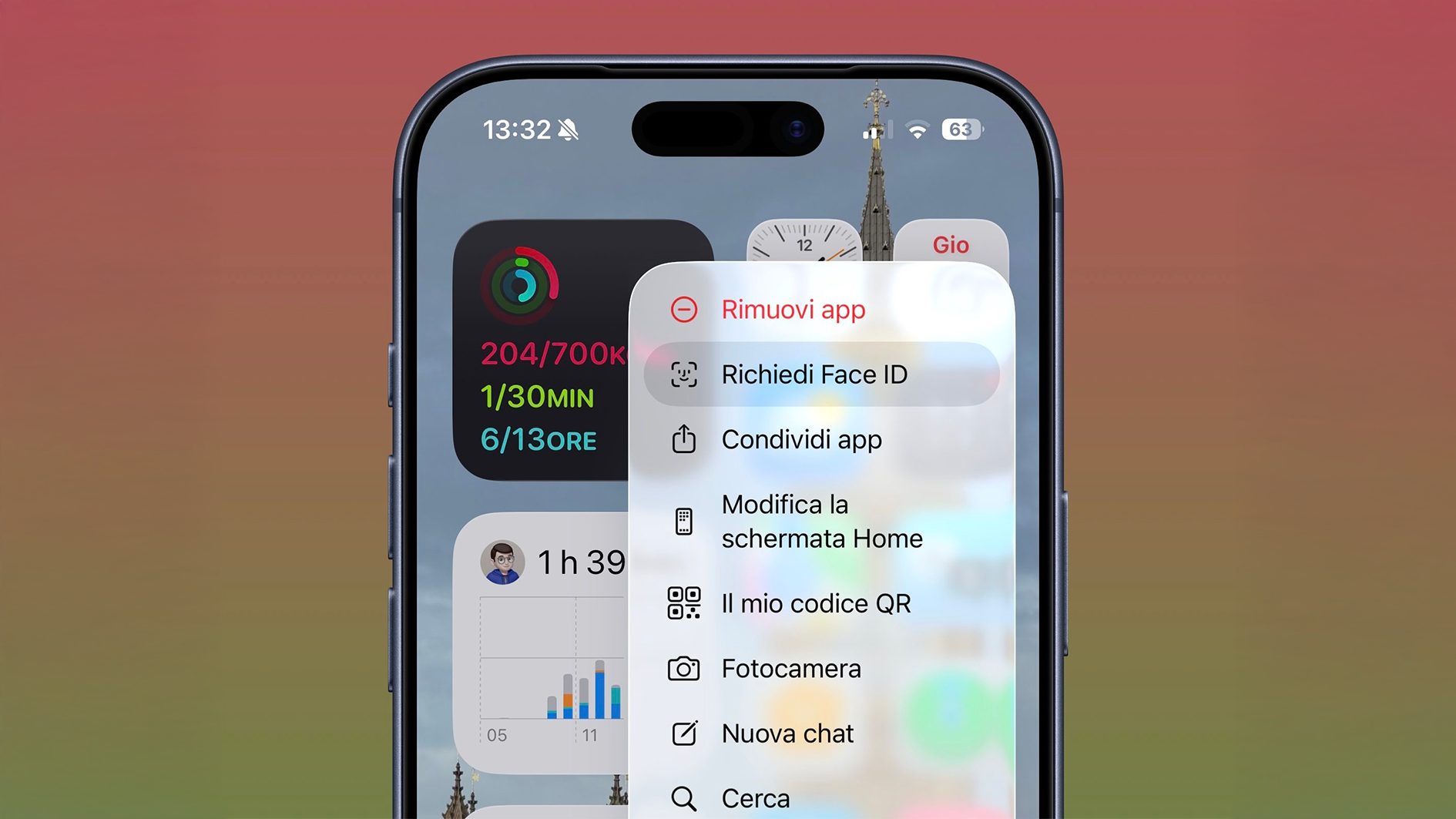
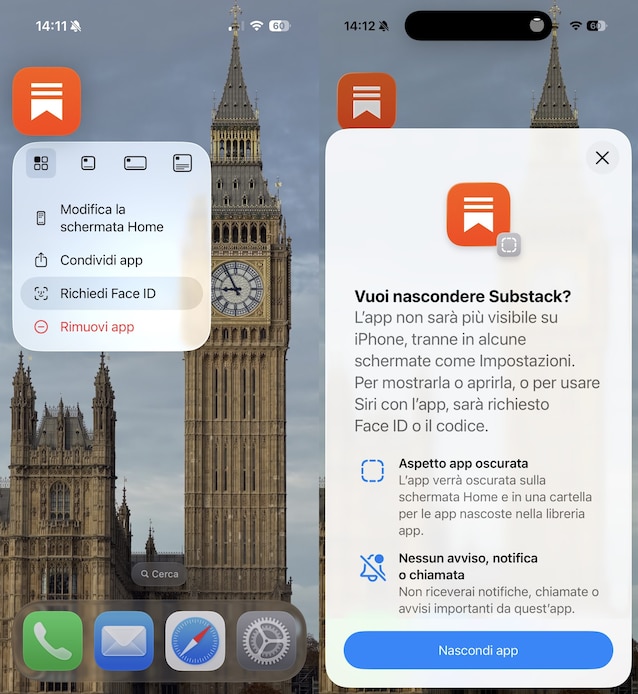
To start the process of hiding app icons, we must interact directly with the graphical interface of our smartphone. We identify theapplication icon that we want to protect on the Home screen and apply a prolonged pressure on it. This gesture activates the so-called “quick actions menu”, a list of contextual commands that are shown above the icon. Within this menu, we select the item that requires the activation of biometric security, then Require Face ID or Require Touch IDdepending on the iPhone model you have. At this point, the system will offer us the specific option to hide the software: we confirm by choosing Hide and require Face ID or Hide and require Touch ID in the selection box that appears on the “iPhone” screen.
In the event that the app has been set with the “Always” option regarding localization, you will be notified of this via a specific alert and, before proceeding, you will be asked to change this setting. If everything went well and you don’t need to take any further action, confirm your intention to hide the app by tapping the button Hide apps (in conclusion).
How to Find Hidden Apps on iPhone
Should the need arise find hidden apps on iPhone (to use them or to restore their display), here are the steps you need to follow.
- Go to the section App library: This is the last page available on the Home screen, which automatically organizes all your apps into categories.
- Scroll to the bottom App library and open the folder Hidden.
- Authenticate via Face ID or Touch ID and, as you will notice, the contents of the folder will be revealed to you and you will be able to touch the app icon (now visible) to open it (the app will open in all respects after a final identity check requested by the device to guarantee maximum protection).
To possibly restore the display of an app previously hidden from the Home screen, instead, enter the folder Hidden inside the App libraryyou will have to press and hold the icon of the application concerned, select the option Don’t require Face ID or Don’t require Touch ID and confirm everything with a final scan of your face or fingerprint. That’s all.