Few things can cause panic like not being able to access your smartphone because you no longer remember unlock code. Android and iOS have for years integrated mechanisms designed to balance security and the possibility of recovering the information on your device: on the one hand, preventing unauthorized access to data, on the other, allowing the legitimate owner to regain control of the device through verified procedures.
In this in-depth analysis we will see how to unlock your smartphone if you no longer remember the code taking a closer look at how these systems work. We will analyze the options offered by Android, which revolve around the Google account associated with the phone and remote management tools, and those provided by Apple for iPhone, based on system recovery via the device itself or with the help of a computer. It is important to clarify from the outset that “unblocking” does not mean bypassing system protections: in most cases the process involves deleting local data and still requires authentication with the original account. This approach, which may seem drastic, is actually a design choice based on solid IT security criteria, designed to protect personal information in the event of theft or loss of the device itself.
Via Google account (for Android)
In the case of Androidthe first possibility is linked to an integrated function that appears after several failed unlock attempts. By entering an incorrect code several times, the system offers the option of recovery via Google account. In practice, the phone asks you to prove your identity by logging in with the email and password of the Google account previously configured on the device. Once verification is complete, you can set a new code. This method is the least invasive of all because it does not involve the loss of data, but requires remembering the account credentials, which in effect become the “master key” with which to unlock the device. To use this option, therefore, enter an incorrect unlock code at least five times and, as soon as the option appears Forgotten passwordselect it and follow the on-screen instructions to proceed with account recovery.
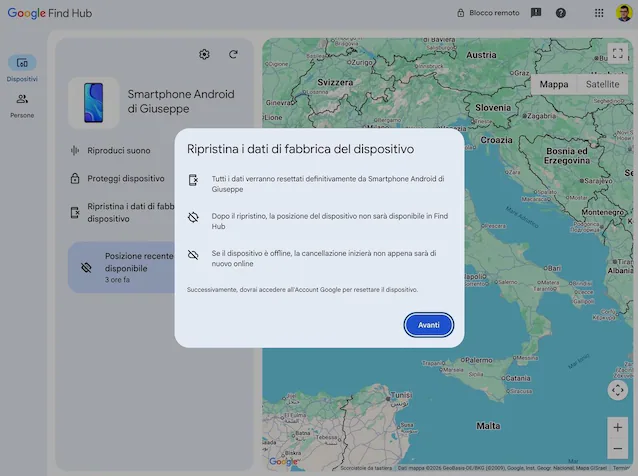
If for some reason this path is not viable in your case, you could take advantage of it Find your phonean online service provided by Google that allows you to locate, block or delete a smartphone remotely. From a technical point of view, deletion is equivalent to a factory reset: the system deletes the lock code along with all locally stored information. It is an effective solution, but it must be used with full awareness of what you are going to do on the phone: if you do not have a backup of the data on your smartphone, in fact, all the data will be lost forever. Even after deletion, however, an additional level of security comes into play: upon first launch we are asked to enter the credentials of the original Google account. This mechanism is called Factory Reset Protectionoften shortened to FRPand serves to prevent a restored phone from being used by anyone who is not its rightful owner.
To proceed with this second option, go to the Find your phone page on a browser and log in using the Google account linked to your phone. If you have multiple devices, select the appropriate one and then click on Factory reset your device. This will start the procedure for resetting the terminal to its factory settings, including clearing the password and restoring its default settings. Once the process is complete, remember to log in using your original Google account credentials when asked.
The last option on Android is the manual reset via the advanced boot modes, accessible by combining the physical keys with the phone turned off (usually you have to keep the buttons pressed at the same time Power And Volume + for about five seconds to enter the mode FASTBOOT). Then, taking advantage of the volume keys to enter the recovery mode And delete all datafollowing the instructions that appear on the screen. By selecting complete data deletion, the phone will return to its initial state but, even in this case, at the end of the process, access to the device requires the use of the original Google account.
Reset code for iPhone (Apple)
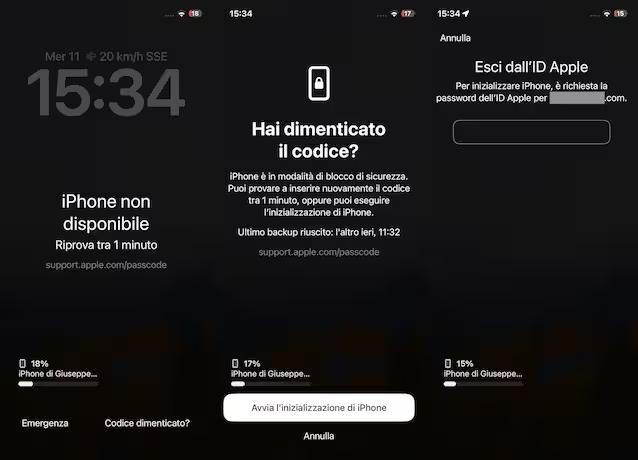
On iPhone the approach is different than what we have seen on Android, but the substance remains more or less the same. With recent versions of iOS, starting from iOS 15.2Apple allows you to reset the passcode directly from the device, without having to use a computer, as long as the iPhone is connected to the Internet and associated with an Apple ID. These are the steps to take:
- Enter an incorrect unlock code on the iPhone several times until the writing appears iPhone not available.
- Touch the voice Forgotten code?.
- On the screen Security locktap on Start erasing iPhone. We remind you that you will be able to access the screen in question only if you have an active and functioning cellular or Wi-Fi connection and if you have left the Find me function active on your iPhone.
- Provide the password of your Apple account and tap Erase iPhone to permanently erase all data and settings on your iPhone.
- Once the device restarts, follow the instructions that appear to reconfigure it and possibly to restore data from an available backup. You will then be able to access your Apple smartphone and reset a new lock code.