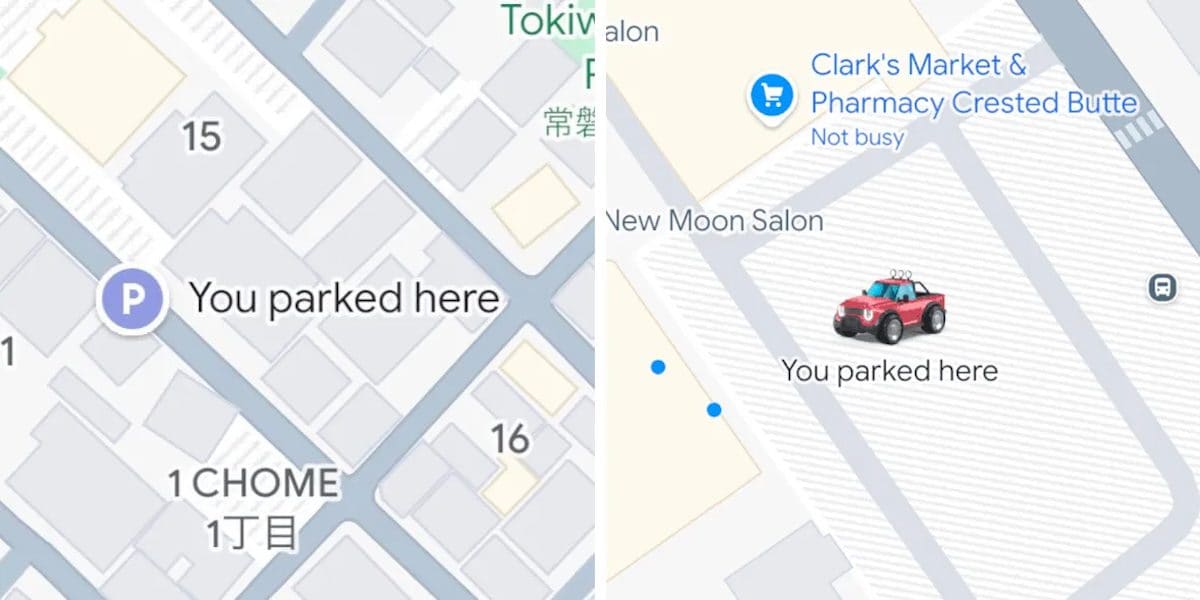
On the iPhone version of Google Maps now it is possible automatically save parking. The function will come into action when Maps detects that the device has disconnected from the Bluetooth, USB or CarPlay connection previously established with the car or, alternatively, if it detects the vehicle’s stationary state via the iPhone’s motion sensors. The parking space then remains saved for up to 48 hours, unless you continue driving or delete it manually. The traditional symbol will no longer mark the car park “P”but the user-set car icon. This cosmetic change should help drivers identify parking locations more quickly. On Android the procedure continues to be manual.
How automatically saved parking on Maps works
To take advantage of the function that allows you to automatically save parking on Google Mapstwo conditions must occur: use theGoogle Maps app on iPhone or iPad and make sure the device is connected to the car via Bluetooththrough USB connection or away CarPlay. This is because the app will recognize the end of the “ride” when we disconnect the device, thus interrupting the connection to the car. It is this condition that triggers automatic parking recording. To be honest, it is possible to ensure that parking is saved even in the absence of this condition, by taking advantage of the motion sensors of the smartphone. Soon we will explain how to activate the function in both ways.
Once saved, the parking location remains available on the map for two full days and can be deleted with a single tap if it is no longer useful. A pin identified by the wording will identify the point where you parked your car “You parked here”also visible when searching for the entry “Parking saved” in the Maps search bar. From that point it is possible to recall the directions to return to the car, change the position if the GPS signal was not precise or delete it. The interaction remains simple and consistent with the interface you are used to: by touching the pin you can access a panel that allows you to manually move the position, remove it or share it with others.
The other innovation, more aesthetic than functional (but still useful for improving the user experience), concerns the use of custom car icons. For some years, Google has allowed you to replace the “classic” navigation arrow with a stylized representation of your vehicle, choosing between different types of cars and colors. With the most recent update, the same icon is used to indicate the parking spot, ensuring a certain visual continuity between the navigation phase and the location of the parked car. The functionality is already available globally and requires no intervention from the user: if you have selected a car icon, this will automatically be replicated in the parking placeholder.
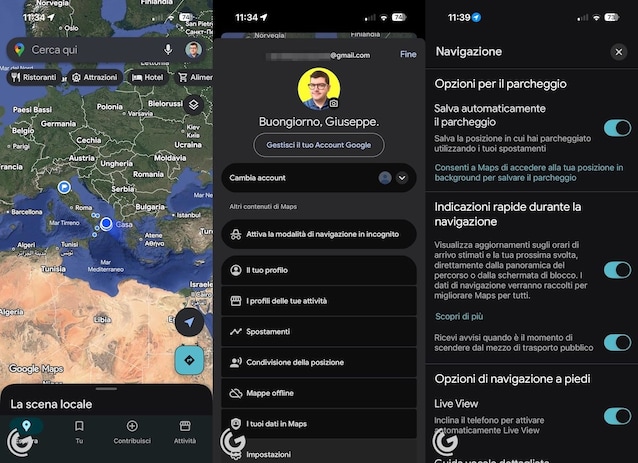
To make sure that the function that automatically saves parking on Google Maps is active on your device, follow these steps.
- Open theGoogle Maps app for iOS.
- Touch yours profile photo (top right) and then the voice Settings in the menu that opens.
- Tap on the item Navigationscroll the menu to the section Parking options and activate the function Automatically save parking moving up Hon the appropriate switch.
- If you don’t have the ability to connect your iPhone to your car’s Bluetooth, tap the wording Let Maps use your trips to save parking and answer Allow to the box Google Maps would like access to “Movement and fitness” data.
What about Android users?
Although the introduction is already active on iOS, the situation on Android remains unchanged. In this case, in fact, manual action is still required by the user, who can proceed to save the parking space by touching theblue indicator (which represents the geographical position you are in on the map) and select the dedicated option available in the menu that opens.