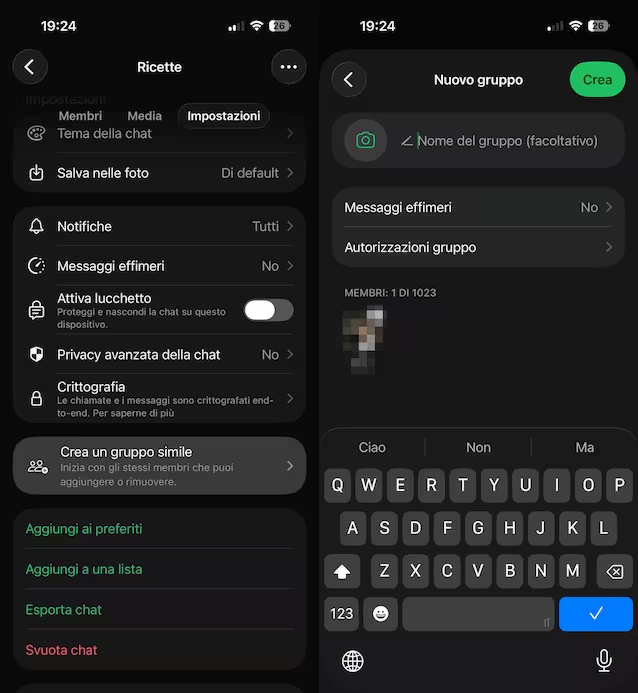
WhatsApp announced numerous new features designed for improve the group chat experience. Whether it is the chat with work colleagues, the one with soccer friends or, again, the “classic” family chat, the new functions announced by the platform developed by Meta will be able to make communications simpler and more immediate. In this case, WhatsApp has introduced the possibility to create anonymous and timed surveysone new mention @tutti and the possibility of create parallel chats from already existing groups. Let’s take a closer look at each of these new functions by first seeing what they allow you to do and then, practically, how to use them on your WhatsApp account.
How to do new surveys on Whatsapp
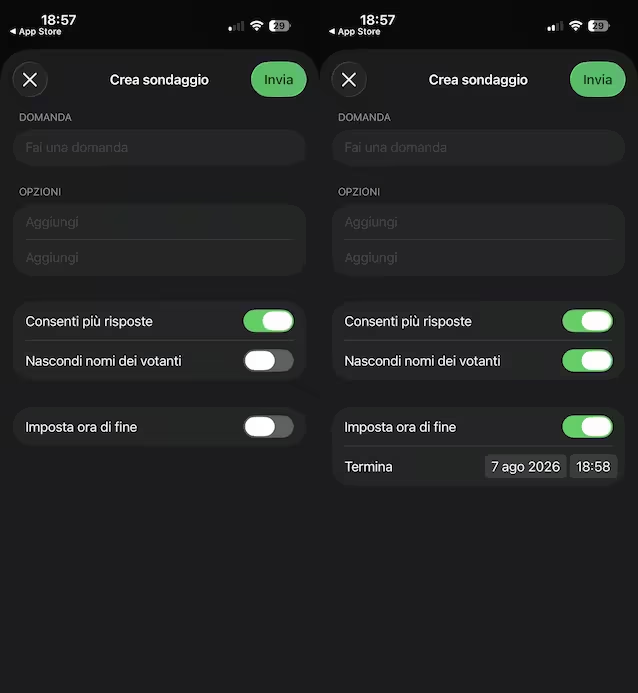
Let’s start with the news regarding the polls, that become more “intelligent”. A first novelty concerns the possibility of set a voting deadline: once the established day and time is reached, the survey closes automatically and it is no longer possible to vote. This allows you to avoid unnecessary waiting and make decisions on time.
The second novelty concerns i anonymous surveys. Until now it was possible to see who had voted for each option; now, however, you can activate an option that allows you to hide the names of voters. In this way preferences remain reserved and everyone can vote with greater freedom, without having influence from the other participants in the conversation and without the obligation of having to justify their choice.
To use these two new features, do this:
- Open the group chat of your interest.
- Touch the button + and select the item Survey.
- After filling in the fields Request And Optionsmove up Hon the switches present in correspondence with the wordings Hide voter names And Set end time.
- If you have decided to give a deadline to the survey, indicate using the appropriate menus day And Now of the end.
- Touch Send to send the survey in chat.
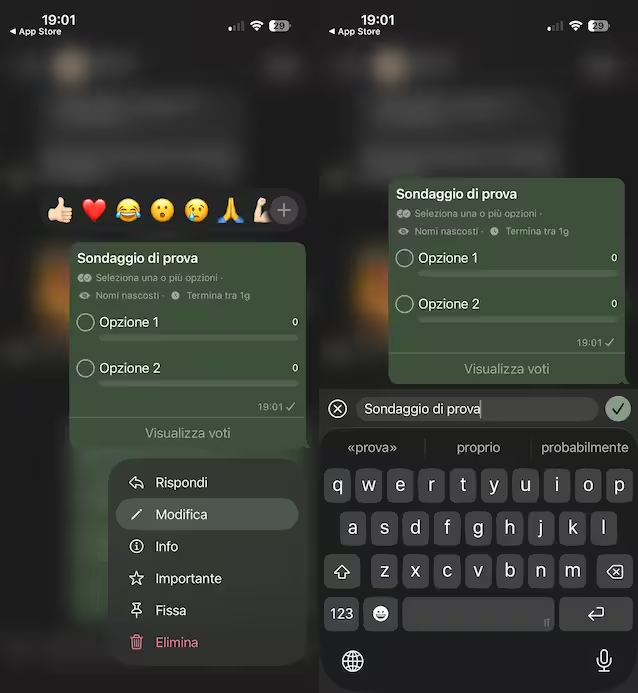
Another new feature regarding surveys is that which allows you to change the question asked within 15 minutes since its creation. If you notice a typing error, an unclear sentence or the need to clarify the question better, it will finally no longer be necessary to delete the survey and redo it from scratch, but simply correct it within the appropriate time, following these other steps:
- Carry out a long tap on the survey.
- Select the option Edit.
- Please correct the question posed via the typing bar appeared below.
- Tap the icon tick to save the changes made.
How to use the @tutti mention to tag group participants
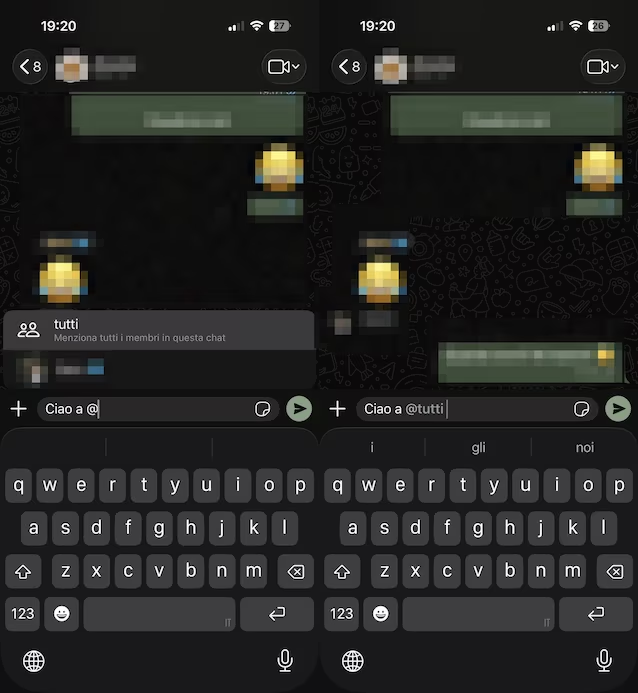
Another function introduced by WhatsApp is the possibility of mention all participants in a chat group using the function @everyone. This innovation allows each member of the chat to receive a notice regarding the mention without having to mention all the names individually. This will save us a lot of time!
The function is designed above all for urgent or particularly relevant communications. It can be used, for example, to signal a change in the time of an appointment, remind you of an upcoming deadline, communicate a last minute change, and so on. In groups with more than 32 participants, this must be said, the possibility of using @tutti is reserved for administrators.
Notifications relating to the mention @tutti can reach you even if you have muted the group chat but, as WhatsApp explains, it will still be possible to control the way in which these notifications are delivered and deactivate them at any time from the settings.
To use this new feature, simply open one group chattouch the message typing barwrite @ on the keyboard, select everyone from the menu that opens, write the rest of the message e send it in the usual way.
How parallel chats are created
The latest news concerns the creation of parallel chats starting from already existing groups. According to WhatsApp these chats «they’re perfect for starting a side conversation to plan a surprise party, coordinate event logistics, or delve deeper into a topic without clogging up the main chat» where the participants to include in the new group conversation are located.
To use the new feature, these are the steps to follow:
- Open the group chat where you want to start from to create a similar chat.
- Touch the group name (above).
- Scroll to the bottom of the screen and select the option Create a similar group.
- Press up After you (if you need to include extra members you can do so now by selecting them from the proposed menu).
- Give a name the group and save it by tapping on Create.