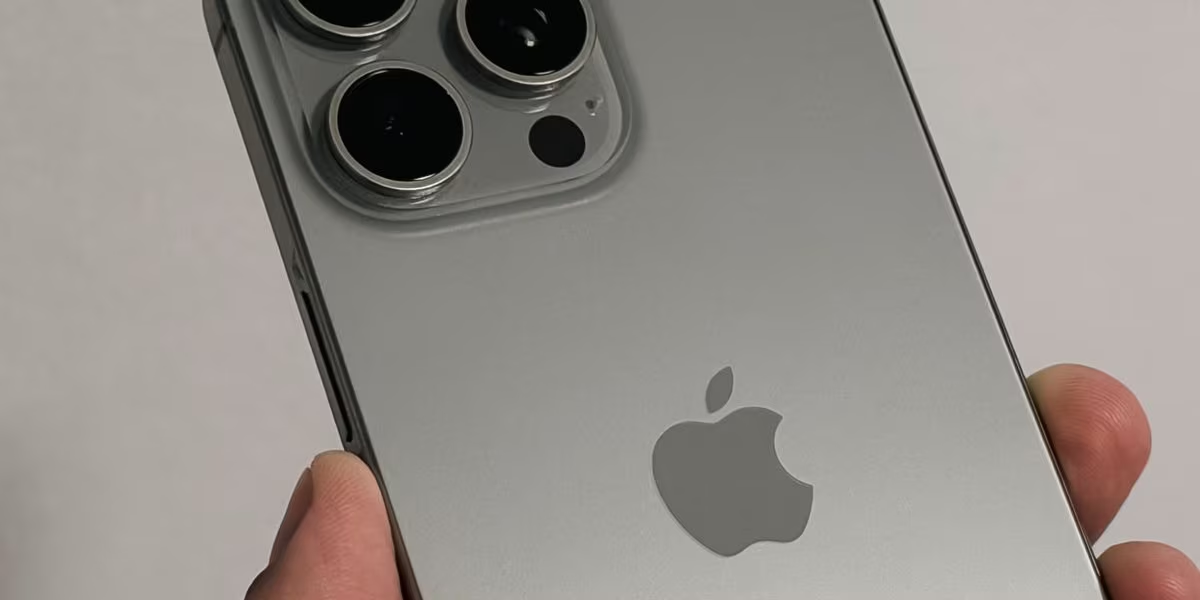
There are functions in our smartphones, which are sometimes ignored because they are relatively hidden in the depths of Android or iOS. This is a great shame, because they do not allow us to exploit our devices 100%. An example of a function that is often ignored by users and which is present on iPhones was introduced by Apple several years ago, in 2020, with the release of iOS 14. We are talking about the Back toucha function that essentially turns the back of the device into a kind of “secret button” which can be activated with dei double or triple taps to call up various shortcuts. If you didn’t even know this feature existed, you might find it extremely useful. Let’s immediately see how to activate it and what possible configurations we could set.
How to set up “Back Touch on iPhone”: where it is located
For configure the Back Touch featureyou must have an iPhone 8 or a later model that is equipped with iOS 14 or later versions. If you have a recent iPhone, therefore, you certainly meet these two requirements.
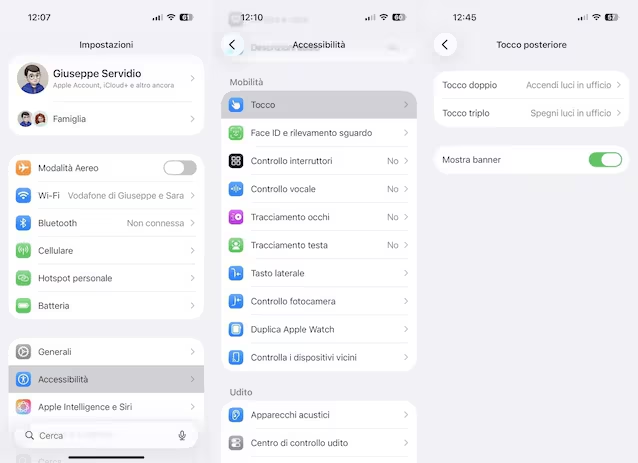
To activate the feature, first open the app Settingsgo in Accessibilityand then select the item Touch (in the section Mode). In the new screen that opens, the wording Back touch (which is at the bottom). At this point you have two possibilities: configure a Double tap and possibly also a Triple tap. For each of these gestures you can then choose a different action from the list proposed by the system. As you can see, the shortcuts that can be activated are divided into four different categories:
- System: here you will find all those functions (system functions in fact), which allow you to return to Home, recall the list of applications or basic functions, such as dark mode, the lock screen, the Screenshot function, and so on.
- Accessibility: here are the functions designed for those who have difficulties of some kind, due for example to visual or hearing disabilities.
- Swipe gestures: here there are simply two options to scroll the screen contents up or down.
- Quick Commands: This is where all the shortcuts you create or import into the iOS Shortcuts app reside.
Which shortcuts to set and how to recall them
About which of the many functions to setyou will have to decide it based on your usage needs. Let’s give you just a few examples. If you usually take a lot of photos, you could set the front camera to double tap and the flashlight to triple tap. If, however, you want to quickly call up the control center and notification center, you could set these two options as double tap and triple tap. Have the volume buttons become damaged and no longer work well? While waiting to repair them you could set the volume – and volume + options as your preferred shortcuts. Also very interesting is the possibility of combining these gestures with quick commands, those created in the app of the same name. This allows you to make the possibilities of customizing the double and triple touch almost infinite. In our case, for example, we configured the double tap to turn on the lights in the office, and the triple tap to turn them off. Really very comfortable.
Once you have completed the configuration and chosen which actions to activate, simply perform them on the back of the iPhone two or three close touchesdepending on the setting you choose. It is not necessary to hit the device forcefully: even light touches trigger the preset actions, as long as they have the correct rhythm. A practical reference can be the rhythm of a double click of the mouse or a small tap given to a door. However, if the taps are too close together, too far apart, or too soft or strong, the iPhone may not recognize them the first time and you will lose the benefit of using these quick shortcuts.