Some owners of iPhone they are reporting a bugs which can drastically reduce the available storage space on your device. The problem concerns the “System data” section of iOS, which normally occupies only a small part of the internal memory, but which in certain circumstances seems to grow up to even exceed 100 GB. A situation that can make it difficult to install new apps, save photos and videos, or even update the operating system.
The testimonies describe anomalous behavior which, in some cases, leads this category to progressively increase until it saturates a large part of the storage. At the moment, it is not yet clear how widespread the phenomenon is or what the causes may be.
What is “System Data” and why it can take up so much space on your iPhone
The “System Data” item collects a series of essential files for the correct functioning of iOS. It includes, for example, caches, system registers (logs), temporary files, resources used by the operating system and other elements necessary to guarantee performance, security and stability of the device.
Under normal conditions this section occupies a relatively small amount of memory and is variable over time based on the use of the iPhone. Some elements are in fact created automatically by the system and subsequently deleted when they are no longer needed.
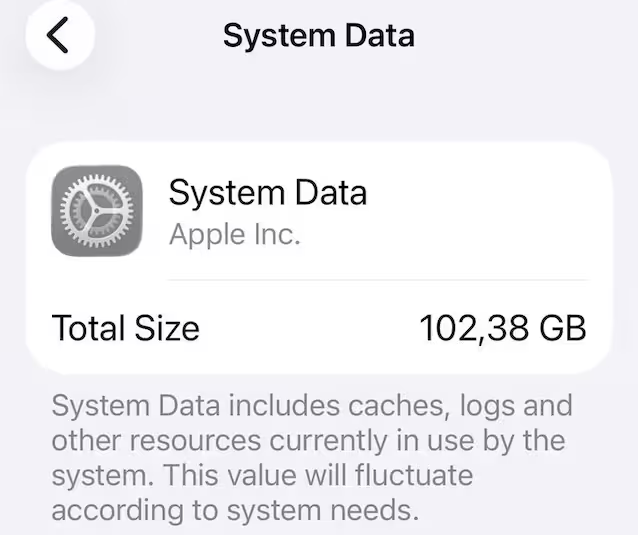
In the cases that have emerged so far, however, this item can absorb over 100 GB of the iPhone’s internal memory, leaving very little space available for applications, photographs, videos and other content. This is a decidedly high value, especially on models with a lower storage capacity.
How to check if the bug also affects your smartphone
Controlling the space occupied by this category is quite simple. To do this you need to open the app Settings (the one with the gear wheel) present on the Home screen and/or in the iOS App Library, select the item General in the proposed screen, therefore that one iPhone space and wait a few seconds for the storage analysis to complete.
At this point, an overview of the storage used is shown, with details of that occupied by applications, photos, documents and the “System data” item. A slight variation is completely normal, but if this section ends up taking up tens or even over 100 GB it could be the same anomaly described by users.
How to recover storage space
Currently there is no definitive procedure that guarantees the effective resolution of the problem. They are there though some good practicesresulting from the shared experiences of users, which can help recover some of the occupied space, although the results may vary from case to case.
The first attempt is to restart the iPhone, an operation that can help delete some of the temporary files generated by the system. It is also advisable to install the latest available version of iOS, since software updates may correct any malfunctions that have not yet been publicly documented.
It can then be useful to delete unnecessary files, as well as empty the cache of applications that allow this and remove any now useless downloads that may be present. If things don’t improve, a complete backup followed by resetting the device represents the most drastic solution, but also the one that in many cases allows you to correctly reconstruct the data used by the operating system.
Before proceeding with the recovery it is however advisable to make a backup copy of your contents, so as to avoid the loss of photographs, documents and other personal information.
Apple has not yet clarified the causes of the problem
Apple has not yet given official confirmation of the existence of the bug nor clarified what could be the cause of the unusual growth of the “System Data” section. Consequently, it is not yet possible to establish whether the phenomenon is linked to a specific version of iOS, to certain iPhone models or to other yet unknown circumstances.
Until the company provides more details, it is advisable to periodically monitor the device’s storage space, keep iOS updated and resort to the remedies described if the memory decreases abnormally. If the situation persists even after a full reset, you may want to contact Apple Support for assistance.