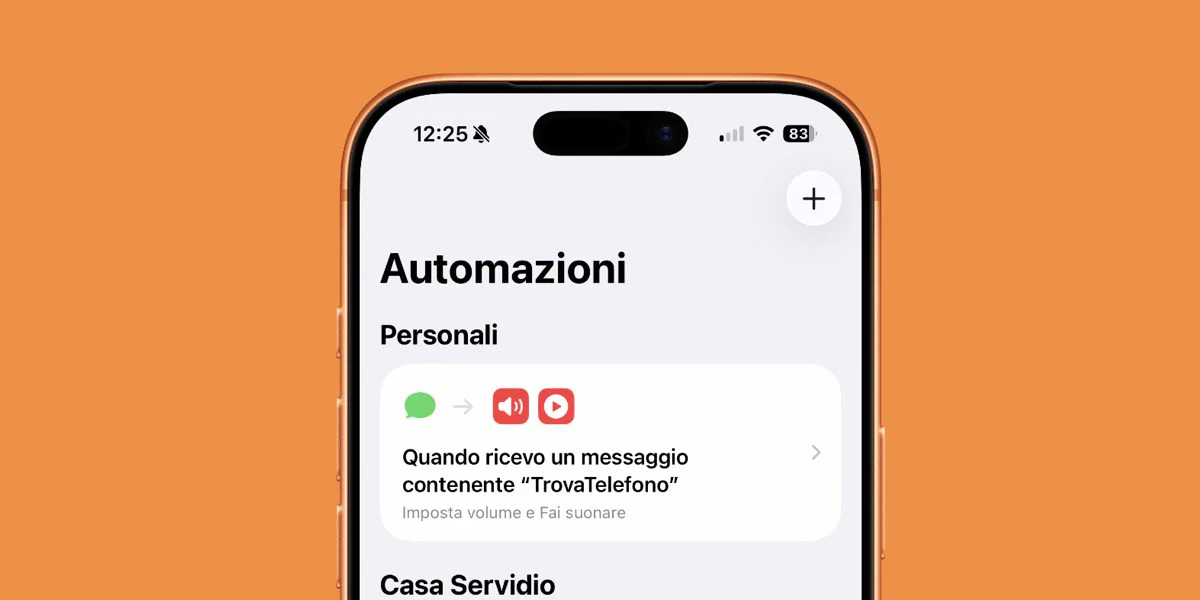
If you usually leave silent on your iPhone, you know perfectly well how complicated it can be to find your phone without using the “Make it ring” available with Apple Watch or by taking advantage of the similar function integrated in “Where is” of iCloud (for example by acting from the computer). Without these, the risk of spending the entire afternoon rummaging through cushions and drawers to find the smartphone is real. However, there is a trick which, if set in advance, could save you in any situations of this type that could arise in the future, as it allows you to make your phone ring at maximum volume even when it is mutedand can be configured in a few minutes viaiOS Shortcuts app. This is the same app that serves as an iPhone anti-theft device, where you will find instructions for setting up an automation that allows you to trace the geographical position of your iPhone in the event of theft or loss. But let’s go back now toautomation for iPhone that allows you to find it again even if it is set to silent seeing, practically, how to create it.
- The first step is to open theShortcuts app and tap the tab Automationswhich you find at the bottom center of the screen.
- From here press on the symbol + at the top right and scroll the list until you select the option Message.
- At this point you must define the so-called trigger, i.e. the condition that will trigger the automation. Touch the voice The message contains and in the text field Any element type a unique and uncommon keyword, such as “FindPhone”. It is better to avoid generic terms such as “Hello” or “Good morning”, which would clearly trigger the command by mistake during a normal conversation. Once this is done, tap End.
- In the field Sender you can leave the option Any senderso you can also use the phone of a friend or family member in case of emergency, or you could decide to narrow the field to specific contacts you trust. The choice is yours.
- Now, as the fifth step, select the option Run immediately and press on After you.
- Now move on to configuring the actions, i.e. what your iPhone will have to do automatically once it receives the message with the keyword you have designated. Touch Create a new shortcut (above) and look for the item in the bottom bar Set volume: select the option in question, so that the action appears in the command you are creating. Then touch the currently set value (e.g. 50%) and, using the appropriate cursormax it out to 100%. This way the phone will emit a high volume sound that will allow you to understand if it is nearby and regardless of whether the iPhone was set to silent or low volume.
- Immediately afterwards look for the action Make it ring and touch the tick top right. Once everything is set, tap End at the top right: the automation is ready and will remain active in the background, ready to fire whenever you need it.
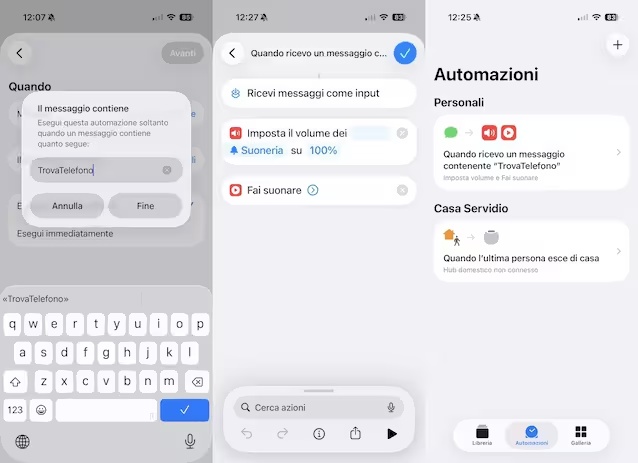
If you want to try it, via another phone, send your number an SMS containing the keyword you have chosen to trigger the automation and, as you will notice, the iPhone (despite being silenced) will emit a clearly recognizable sound.